


A professional email signature enhances branding, builds credibility, and makes communication more effective. While many tools, like Canva, offer signature creation options, Signature Hound or vibe coding with ChatGPT or Claude simplifies the process significantly. It provides an easy way to design and install signatures across platforms, including Gmail, email marketing tools like Kit, and CRMs like Dubsado or HoneyBook.
Estimated reading time: 6 minutes
Table of contents
- My Experience Creating Email Signatures for Gmail
- Essential Items to Include in Your Gmail Signature
- How to Add an Email Signature in Gmail Using Signature Hound
- How to Create an Email Signature Using Claude (ChatGPT can probably do this as well.)
- Best Practices for an Effective Email Signature
- Frequently Asked Questions
- Conclusion
My Experience Creating Email Signatures for Gmail
I set up email signatures several times a week for my clients as a part of my Done for You Dubsado and HoneyBook setup services. I’ve tried A LOT of different tools to make it simple and easy. In fact, for this blog post, I spent an hour or more trying to create a signature that I liked using Canva. (This is my go-to design tool for EVERYTHING.) No sale. (I’m sorry to all the creators whose videos I watched. They were great videos; I just wasn’t as happy with the end result.)
For the longest time I was using and recommended SignatureHound, however, as I was revising this post, I thougth I wonder if I can use Claude to create a new on brand email signature. I tried it and loved the result, so I’m sharing that process here as well since some people might be interested in using AI.
SignatureHound makes it super simple. Just pick a template, put in your info, customize it, and go. The builder is visual. Click a section to edit it, upload an image or change a URL in a link.
Even better, it has lots of ways to export it for different platforms, so you can design it once and put it in your Dubsado, HoneyBook, email marketing software like Kit, and of course Gmail. If you’re wondering how to add an email signature in Gmail, the instructions are straightforward and user-friendly. (You don’t have to be super tech-savvy to do this.)

Essential Items to Include in Your Gmail Signature
- A headshot or logo
- Your business name
- Website – a clickable link is a must
- Email address
- Social Media Links
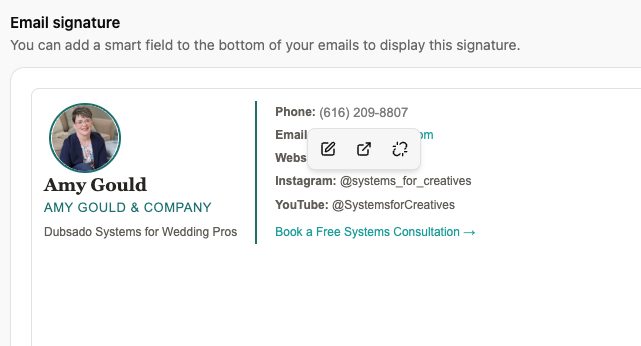
- Call to action (SignatureHound has a really cool call-to-action image option. I used it to add a link to my discovery call scheduler.)

How to Add an Email Signature in Gmail Using Signature Hound
Step 1 – Create Your Email Signature with Signature Hound
- Go to SignatureHound.com and choose a template you like.
- Enter your image, logo, fonts, colors, brand details, and business information.
- Click Install Signature.
- Choose the Gmail option and click Copy Signature. This is a key step in adding an email signature in Gmail effortlessly.
Step 2 – Add Your Signature to Gmail
- Open Gmail.
- Click the settings wheel in the top-right corner.
- Click ‘See all settings‘.
- Scroll down to the Email Signature section.
- Click ‘+Create’ New.
- Name your signature and paste the copied signature from Signature Hound.
- Click ‘Save Changes‘ at the bottom of the screen.
Now you know how to add an effective email signature in Gmail easily!
How to Create an Email Signature Using Claude (ChatGPT can probably do this as well.)
Step 1. Customize the Prompt Below in Claude
Copy everything below into a new chat with Claude and fill in your own details before sending. (Feel free to leave colors, fonts, etc. out of it.)
Create an HTML email signature for me to use in Gmail and [Dubsado / your CRM]. It needs to work when copy-pasted directly into a signature editor (not uploaded as a file), so use a table-based layout with inline styles only — no external CSS, no flexbox/grid, no <style> blocks.
My info:
- Name:
- Title/tagline:
- Company name:
- Phone:
- Email:
- Website:
- Social links (list handle + full URL for each, e.g. Instagram, YouTube, LinkedIn):
- Booking/call link (if any):
Brand colors (hex codes):
- Primary text color:
- Accent color (links, divider, labels):
- Secondary/gray text color:
Fonts:
- Heading font:
- Body font: (If you don’t have brand fonts picked yet, suggest a paired serif + sans-serif.)
Layout preference:
- Two-column (photo/name on left, contact details on right) or stacked/single column?
- Bold labels before each line (e.g. “Phone:”, “Email:”) — yes or no?
Headshot or logo:
- Do you want an image included? If yes, note that the image must be hosted at a public, direct URL (ending in .jpg or .png) that loads to just the image when opened in a new browser tab — not a page or gallery. Common places to host one:
- Your own website’s media library (Showit, Squarespace, WordPress, etc.)
- A public Google Drive or Dropbox link converted to a direct-download format
- An image hosting service like Imgur
- If you don’t have the URL yet, ask for a placeholder
<img>tag to be included with clear instructions on where to drop the real link in later, and don’t drop the image styling (circle crop, border, size) — only the URL.
Step 2. Add Your Signature to Gmail Following the Steps Above
Best Practices for an Effective Email Signature
- Keep it clean and simple.
- Use your brand colors
- Use a professional headshot or company logo.
- Limit text to essential details.
- Ensure all links are clickable and correct.
- Make sure it’s mobile-responsive. How you add an email signature in Gmail can affect its mobile responsiveness.
Frequently Asked Questions
I don’t like Canva for this because the image doesn’t scale. Also, you can’t have multiple clickable links. You can only make the image clickable.
Yes, in fact, Signature Hound has instructions for most platforms. (For most of the ones listed above, you would want to follow their HTML instructions.)
Yes, you can. To add your own email signature, just follow the instructions above under step 2. Then create your own email signature.
Conclusion
Using Signature Hound streamlines the process of creating a polished email signature, making it easy to integrate into Gmail and other platforms. A professional signature enhances brand recognition, builds credibility, and ensures consistency across your email communications. Did you use this tutorial to create your own email signature? I’d love to see it! Comment below or tag me in your stories on Instagram @amyspearson_
Need help setting up your business systems efficiently? Book a consultation with Amy Gould to streamline your digital systems today!


+ view comments . . .