

If you’ve ever found yourself typing the same client details into emails, contracts, and forms over and over again, this one’s for you. You know the drill: you open an email template, tweak the venue name, change the package details, update the wedding date or project start date… then do the same thing again in the contract, then again in the questionnaire. It’s tedious, it’s time-consuming, and it’s exactly the kind of repetitive admin work that slowly drains the joy out of running a creative business.
Dubsado is built to solve problems like this, but there’s one feature that quietly flies under the radar: custom-mapped smartfields. Once you know how to use them, you can make Dubsado remember and auto-fill the specific details you care about most—so you don’t have to keep copy-pasting or worrying you forgot to update something important.
A Quick Summary
In this post, we’re going to unpack what custom-mapped smart fields are, what kind of information you can store in them, and how you can use them across your account. I’ll also share a step-by-step video tutorial showing you exactly how to create and use them, so you can follow along even if you’re not “techy.”
Who I Am (And Why I’m So Obsessed With This Stuff)
Hi, I’m Amy, the systems strategist and automation nerd behind Amy Gould & Company here in Grand Haven, Michigan. I work with creative entrepreneurs—photographers, home stagers, jewelry designers, and other wildly talented humans—to help them streamline their processes so they can spend more time doing what they love, and less time clicking around in admin land.
If we’ve just met, here’s the quick version of why I care so much about things like custom-mapped smart fields: I’ve seen over and over how “little” admin tasks add up. Manually editing every email and contract. Re-typing project details for every form. Digging around in old threads to find the exact package name or delivery date you promised. None of this is why you started your business.
Tools like Dubsado and HoneyBook are incredible, but only if they’re set up to match how you actually work. My job is to help you set up smart systems that remember details for you, automate what can be automated, and still feel personal and aligned with your brand. Custom-mapped smart fields are one of those tiny tweaks that can make a massive difference in how smooth your day-to-day feels.
What Are Custom Mapped Smartfields, Really?
Let’s start with what you probably already know: Dubsado uses “smartfields” to pull in information like your client’s name, email address, project date, and so on. When you see something like “Client First Name” inside an email or contract template, that’s a smartfield. Dubsado grabs the data from the project or client record and fills it in automatically.
Custom-mapped smart fields are like the customizable version of that.
Instead of only using the default fields Dubsado gives you, custom-mapped smart fields let you create your own special fields for information that matters in your business. Think of them as your personalized data fields that you can then “map” to projects or clients and pull into:
– Emails
– Contracts
– Proposals
– Questionnaires and other forms
So instead of you typing “Downtown Grand Haven Beach” as the location in three different places, you add that once to your project in a custom field like “Session Location.” Then, wherever you’ve placed the smartfield for “Session Location,” Dubsado will magically drop it in for you.
They’re “mapped” because you decide where that data lives (client or project level) and where it shows up (forms, emails, contracts). The magic is that once you’ve set them up, everything talks to everything else.
Why You Should Care (Even If You Don’t Think You’re Techy)
If you’re thinking, “This sounds cool, but I can just keep editing templates manually,” here’s why I lovingly challenge that:
First, repetition is where mistakes are born. The more times you manually edit the same details, the easier it is to miss one. That’s how you end up with an email that says “I can’t wait for your October 5 session!” and a contract that still says October 12. Cue confusion, follow-up emails, and unnecessary stress.
Second, your brain is way too valuable to be used as a walking clipboard. You don’t need to mentally track which package a client booked, what you promised in their scope, or where their session is happening. Dubsado can hold that for you, and custom-mapped smart fields are how you teach it to remember the exact details your business uses.
Third, this is how you scale your client experience without cloning yourself. As your business grows, you’ll send more emails, more contracts, more forms. Custom smartfields keep your communication accurate and personalized without adding a ton of time per client. That’s the secret sauce behind a business that feels high-touch for your clients and low-stress for you.
What Kind of Information Can You Store?
Here’s where your creativity gets to come out. Custom-mapped smart fields can hold almost any type of text-based or date-based information you need to reuse in multiple places. The key is to think about information you repeatedly type or copy-paste across projects or information you want to keep track of.
For photographers, that might look like:
– Session location or venue name
– Session type (newborn, brand, family, engagement)
– Package or collection name
– Number of edited images included
– Turnaround time for galleries
– Hair and make-up start time (or other wedding day timeline details.)
For home stagers, you might store:
– Property address
– Listing agent name and contact
– Staging package level
– Install date and removal date
For jewelry designers or product-based creatives, you could store:
– Custom piece description
– Materials used
– Estimated production time
– Shipping method or carrier
You can also get more strategic and store things like:
– Social media handles for brand photography clients
– Preferred pronouns or how your client likes to be addressed
– Partner or secondary contact details
– Special notes you reference often (like “VIP client,” “referred by,” or “repeat client discount”)
Once stored in a custom field, you can pull any of this information into emails, contracts, or forms by inserting the matching smartfield. That way, everything stays consistent and up to date without you manually checking every template.
How Custom Mapped Smartfields Show Up in Your Workflow
Here’s what this looks like in real life.
Imagine you’re a wedding photographer. You’ve set up custom-mapped smart fields for:
– Ceremony location
– Reception location
– Wedding date
– Second shooter name
Now, in your Dubsado email templates and contracts, you swap out generic text with these smartfields. Your “Final Details” email might include:
“I can’t wait to see you on [Wedding Date]( at [Ceremony Location]! I’ll be arriving at [Arrival Time] and my second shooter, [Second Shooter Name], will meet us at [Reception Location] later in the day.”
Instead of editing that every time, Dubsado pulls in the details from the project. If you need to change something (say, the couple moves their ceremony to a different venue) you update it once in the project, and every form or email that references that smartfield is now accurate.
Same thing with contracts. Instead of typing the package name and deliverables manually, you can use smartfields to pull in:
– Package name
– Number of hours of coverage
– Number of final images
– Gallery delivery timeframe
That not only saves you time but helps protect you legally because your contract will always reflect the correct package details tied to that specific project.
How to Create Custom Mapped Smartfields in Dubsado
This is where the video I’ll be embedding really comes in handy, especially if you’re a visual learner. In the video, I walk you step-by-step through:
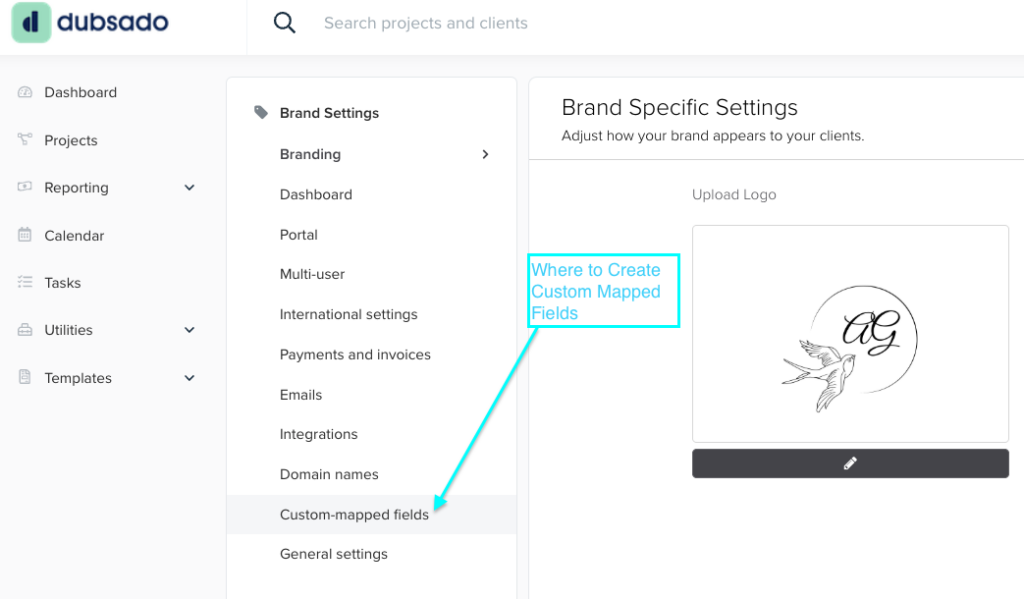
– Where custom-mapped smart fields live in your Dubsado settings
– How to decide whether a custom field should be on the client level or project level
– How to name your fields so they’re easy to find and use later
– How to add these fields to your forms and emails using the smartfield picker
At a high level, the process looks like this:
You’ll head into your Dubsado settings and find the section for custom-mapped fields. From there, you can create new fields and choose whether they belong to the client or project. For example, something you’d never expect to change between projects—like a client’s pronouns—might live at the client level. Something that’s specific to one booking—like session date or package—belongs at the project level.
Where to Find The Information Later/Use It
If you want to check the information or refer to it, you just head to the client’s project and look under the Client Mapped Smartfields or Project Mapped Smartfields.

Once you’ve created your fields, they’ll show up in the smartfield list whenever you’re editing forms, emails, or contracts. You simply click to insert them wherever you want that information to appear. Going forward, when you set up a new project, you’ll fill in those custom fields once, and Dubsado does the rest.
Making Custom Smartfields Work for You (Not the Other Way Around)
The goal here is not to create twenty-five different custom fields just because you can. Start small and strategic. Pay attention over the next week or two to where you find yourself typing the same things:
Are you always rewriting package descriptions?
Do you find yourself double-checking dates between your contract and your email?
Are you constantly copying and pasting a venue address?
Those are your clues.
Create custom-mapped smart fields for the details that are both important and repetitive. Once you see how much smoother things feel, you can always add more fields later. This is an evolution, not a one-time, perfect-from-day-one setup.
And if the idea of figuring this out alone makes you want to close your laptop and go reorganize your prop closet instead, that’s exactly why businesses like mine exist. I help creative entrepreneurs map out what information they actually need, where it should live in their systems, and then set up Dubsado (or HoneyBook) to support that—so the tech quietly works in the background while you focus on your craft.
Take a Few Minutes Out of Your Day to Save Yourself Tons of Time Later
Save yourself a ton of time and stop repeating yourself in Dubsado. Custom-mapped smart fields are simply a way of telling your system, “Hey, this piece of information matters. Please remember it and use it for me.”
By setting them up thoughtfully, you can:
– Reduce errors and embarrassing inconsistencies
– Save real time on every single client you book
– Create a smoother, more professional experience for your clients
– Free up your brain from having to hold every tiny detail
If you’re ready to stop copy-pasting the same information into emails, contracts, and forms again and again, custom-mapped smart fields are your new best friend. Watch the embedded tutorial video to walk you through the setup step by step, and if you want help tailoring Dubsado to your specific creative business, that’s exactly what I do at Amy Gould & Company. Book a Free Discovery Call with me and let’s chat about how I can help you save hours a week in your business.
Because your systems should work as hard as you do—and they absolutely shouldn’t require you to type the same sentence three different times.


+ view comments . . .